x264 Settings Comparison Part : 2 - Presets - Draft
In this post I want to look at the various built in x264 presets and its performance. Although
Handbrake doesn't allow native support for the x264 presets. To enable them you have to pass the parameters in the console window found at the bottom of the Advanced Tab. Here is a list of the presets and the parameters required, placebo preset omitted.
Make sure that only the values down below are inside the console window.
- Very Slow
ref=16: bframes=8: b-adapt=2: direct=auto: me=umh: merange=24: subq=10: rc-lookahead=60: analyse=all: trellis=2
- Slower
ref=8: b-adapt=2: direct=auto: me=umh: subq=9: rc-lookahead=60: analyse=all: trellis=2
- Slow
ref=5: b-adapt=2: direct=auto: me=umh: subq=8: rc-lookahead=50
- Medium
- Default Settings of handbrake with no parameters in the console window
- Fast
ref=2: weightp=1: subq=6: rc-lookahead=30
- Faster
ref=2: mixed-refs=0: weightp=1: subq=4: rc-lookahead=20
- Very Fast
ref=1: mixed-refs=0: weightp=1: subq=2: rc-lookahead=10: trellis=0
- Super Fast
- ref=1: mixed-refs=0: weightp=1: subq=1: rc-lookahead=0: analyse=i8x8,i4x4: trellis=0: mbtree=0
- Ultra Fast
ref=1: bframes=0: cabac=0: 8x8dct=0: weightp=0: me=dia: subq=0: rc-lookahead=0: analyse=none: trellis=0: aq-mode=0: no-deblock=1: scenecut=0: mbtree=0
Preset Performance
Compression - Lower is better
Performance - Higher is better
Futurama SD
Cartoons and animation are some of the easier content to process and compress, the following graph shows how each preset affected the filesize(in Kilobytes) represented by the darker area and performance(average frames per second) shown by the lighter area of the graph.
 |
| Click to enlarge |
As you can see the compression does not scale the same as the performance, with the performance scaling at a rather stable rate. And the filesize rises towards the
medium preset then down again to the
very fast preset, then spikes very sharply with
super fast and
ultra fast more than doubling the filesize.
the
very slow, slower and
slow offered the best compression.
Very slow had 6.43% more compression but 57% slower than
slower preset. Of course the file size would not be completely represent the image quality and visual artefacts that can occur with using faster presets.
 |
| Percentage difference in speed and compression compared to medium |
The above graph shows a comparison of how much speed one loses relative to the compression gained in relation to medium. Huge performance loss with very minimal compression gained when using the slower presets and significant performanced gained with little compression loss up to the very fast preset.
The next section will try and discover if any compression artefacts were introduced with the faster presents, and how closely the other presets represent the original footage.
Image Quality
Open each image in a new tab then using ctrl+mouse Scroll to stretch image bigger.
Still Images
 |
| Very Slow |
 |
| Slower |
 |
| Slow |
 |
| Medium |
 |
| Fast |
 |
| Faster |
 |
| Super Fast |
 |
| Ultra Fast |
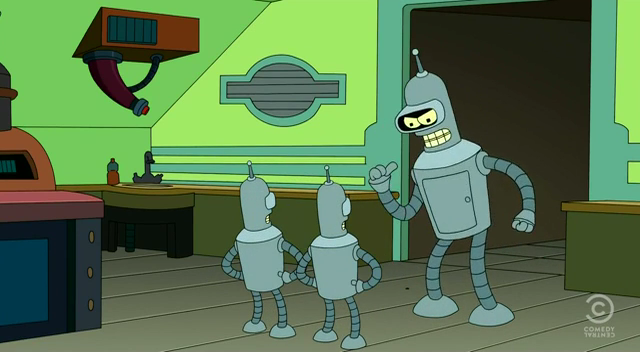
The average image quality is very consistent which is what you would expect using CRF, only closer inspection one can see that that there are some if very few compression artefacts around benders left arm on the faster presets, but not much.
Smaller Motion Detail
 |
| Very Slow |
 |
| Slower |
 |
| Slow |
 |
| Medium |
 |
| Fast |
 |
| Faster |
 |
| Super Fast |
 |
| Ultra Fast |
Again some noticeable artefacts are introduced with the faster presets, with medium retaining enough detail to make it difficult to distinguish it from the slower presets.
Real Steel SD
When we take a look at the compression and performance of a standard definition file, the trends are similar to that of Futurama. With the slower presets having smaller file sizes but significantly slower, with super fast and ultra fast significantly larger.
 |
| Click to enlarge |
 |
| Percentage difference in speed and compression compared to medium |
Same trend with the comparison as seen with Futurama, with the exception that a lot more speed is gained at the faster settings.
Image Quality
Open each image in a new tab then using ctrl+mouse Scroll to stretch image bigger.
Still Images
.png) |
| Original |
 |
| Very Slow |
 |
| Slower |
 |
| Slow |
.png) |
| Medium |
.png) |
| Fast |
.png) |
| Faster |
 |
| Very Fast |
 |
| Super Fast |
 |
| Ultra Fast |
Telling the difference between the still images are difficult, with the slower presets retaining some of the finer details and the faster presets blending of detail, however not very noticable.
Smaller Motion Detail
 |
| Original |
 |
| Very Slow |
.png) |
| Slower |
.png) |
| Slow |
.png) |
| Medium |
.png) |
| Fast |
.png) |
| Faster |
.png) |
| Very Fast |
.png) |
| Super Fast |
.png) |
| Ultra Fast |


.png)
.png)
.png)
_1.png)
_2.png)
_3.png)
_4.png)
.png)
_6.png)
_5.png)
.png)
_1.png)
.png)
_2.png)
_4.png)
_3.png)
_5.png)
_7.png)
_6.png)
_8.png)


.png)

.png)
.png)
.png)
.png)
.png)
.png)
.png)




.png)


.png)
.png)
.png)


.png)
.png)
.png)
.png)
.png)
.png)
.png)
.png)
.png)
.png)